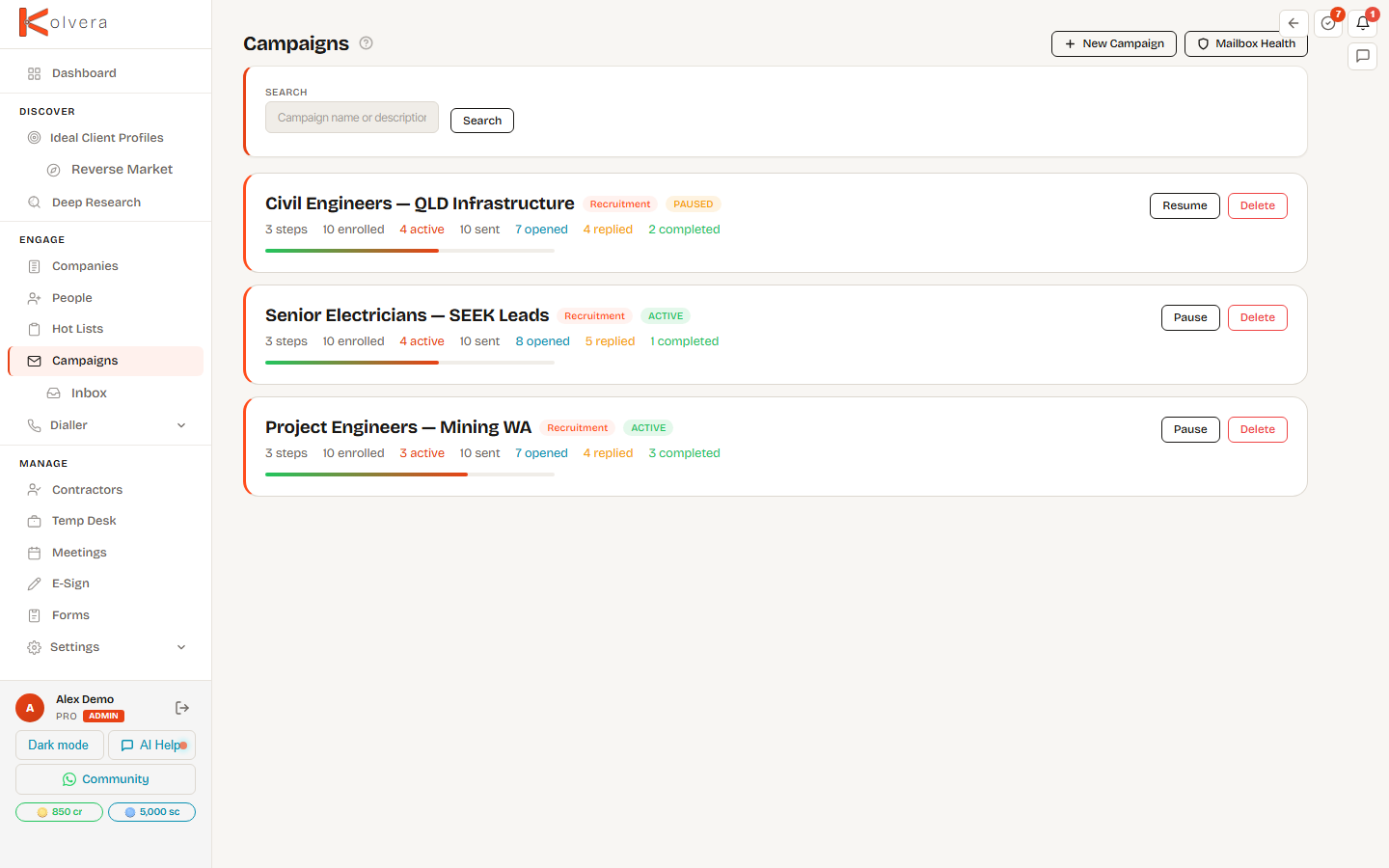
Campaigns
Multi-step AI email sequences that run on autopilot — from one-off intros to full multi-step drip campaigns with A/B variants, merge variables, and per-campaign sending schedules.
One-Off Emails
Send a single personalised email to a contact directly from the contact detail page. One-off emails are not part of a sequence but still support merge variables and are logged in the contact's activity feed.
Creating a Campaign
Start a campaign by telling Kolvera who you're targeting and who you are — the create form leads with three dropdowns:
How to Build the Emails
Pick one of three build modes:
AI email generation uses Claude Sonnet. The sequence automatically stops sending to a contact as soon as they reply.
Copy Framework
When AI writes the sequence, it uses one of three copy frameworks. The framework picker sits under the build modes, with a live preview of the cadence before you generate:
Linking a Reverse Market Profile suggests Float automatically, but you can pick any framework for any campaign. The framework only applies when AI writes the copy — a manual build has no generated steps.
Advanced — Vertical Override
By default a campaign uses the vertical from your account. Open the Advanced panel on the create form to override the vertical, tone, and language for this campaign only. Each vertical tunes the tone, hook style, and step spacing:
Merge Variables
Insert dynamic placeholders into subject lines and email bodies. Variables resolve at send time from the enrolled contact's record — the preview panel shows the exact email each person receives. Wrap a token in double braces, e.g. {{first_name}}.
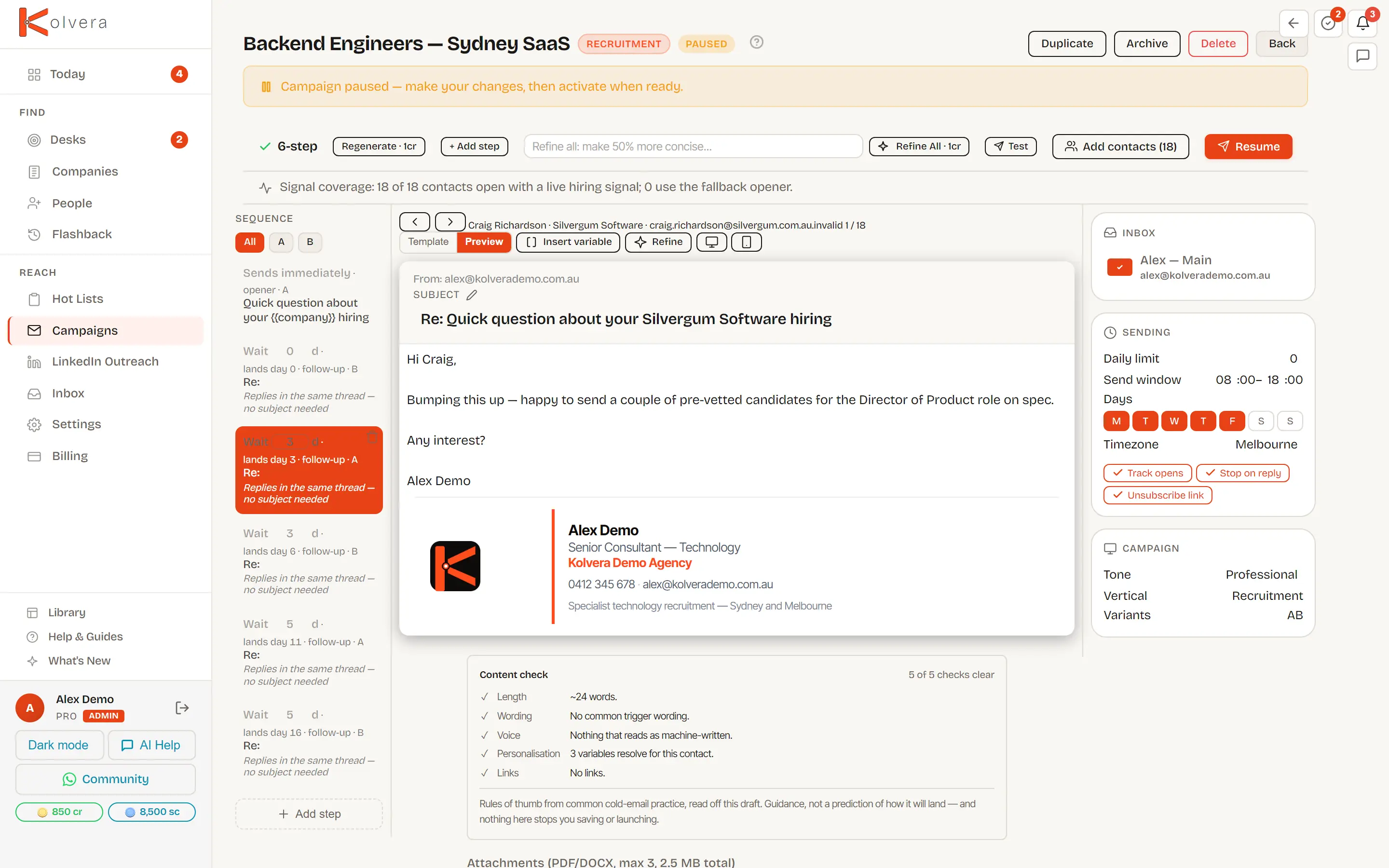
Preview mode resolves every variable against the contact shown at the top of the pane; the arrows step through everyone enrolled. Your signature appears from the second email on — the opener is sent plain-text on purpose, because a first-touch email carrying a marketing signature block reads as bulk.
| Variable | What it fills | Example |
|---|---|---|
{{first_name}} | The contact's first name. | Sarah |
{{last_name}} | The contact's last name. | Mitchell |
{{title}} | The contact's own job title as stored on their record. | Head of Talent |
{{email}} | The contact's email address. | sarah.mitchell@acme.com.au |
{{company}} | The contact's company, shortened to its brand form (legal suffixes like Pty Ltd trimmed). | Acme |
{{location}} | The contact's location, falling back to the advertised role location, then the company's head-office city and state. | Sydney NSW |
{{domain}} | The company's primary web domain. | acme.com.au |
{{job_title}} | The advertised role that surfaced this contact (from the job record), falling back to their own title. | Senior Account Executive |
{{ad_role}} | The target role captured against the contact — the role you are positioning them for. | Account Executive |
{{signal}} | The email-ready reason you're reaching out — the freshest buying signal for the company, drawn from company research and hiring-signal data where available. Blank when no signal exists — guard it with {{#if signal}}. ({{trigger}} is an older alias that resolves to the same value.) | posted 2 new AE roles this month |
{{sender_first_name}} | Your first name — the person sending. Injected per send from the sending inbox's name (falling back to the campaign owner), so a mailbox rotation never leaves the email signed by the wrong person. This is the one token that stays live in AI mode. | Daniel |
{{report_link}} | A shareable link to this contact's report, when one has been shared. Blank otherwise — guard it with {{#if report_link}}. | https://kolvera.io/r/ab12cd34 |
{{candidate_profile_link}} | A shareable link to the anonymised profile of the candidate this campaign markets. Only resolves on a campaign linked to a Reverse Market Profile, and only once you have shared that candidate's anonymised profile. Blank otherwise — guard it with {{#if candidate_profile_link}}. | https://kolvera.io/r/ab12cd34 |
{{calendar_link}} | Your booking / scheduling link. Injected per send from your active scheduling link (aliases {{booking_link}} and {{scheduling_link}} resolve to the same value). Blank when you have no active link. | https://kolvera.io/book/daniel/intro-call |
Variable Syntax
{{first_name}} — resolves to the contact's value at send time. An unrecognised token sends blank, so the editor flags it as you type.{{first_name|there}} — uses the token's value when it has one, otherwise the literal fallback text after the pipe. Handy for the tokens that read naturally with a default: {{first_name|there}}, {{company|your team}}.{{#if signal}}…{{else}}…{{/if}} — renders the first block only when the variable has a value, otherwise the {{else}} block (the {{else}} is optional). Use it to drop an opener entirely when there's no signal, rather than sending a blank line.{quick call|chat|intro} — single braces with pipe-separated options; one option is chosen per contact and step, so the same wording never repeats across your list. A single-brace group with no pipe is treated as a merge tag, not spintax.AI-generated steps bake personalisation in. When a campaign generates its copy with AI, the model writes each contact's real first name, company, and context straight into the prose at generation time — so those aren't live tokens you'll see in the text. The exception is {{sender_first_name}}, which stays live and resolves from the sending inbox; {{calendar_link}} fills at send time whenever you have an active scheduling link. Write-manually and describe-it steps resolve every token live through the send path.
A/B Variants
Each step supports multiple variants. Enrolled contacts are distributed across variants according to your set split percentages. Paused variants redistribute their share automatically to the remaining active variants.
Per-Campaign Sending Schedule
Each campaign has its own sending window, independent of other campaigns. Set the days of the week and time range (in the inbox owner's timezone) during which emails are released. Steps are staggered cumulatively through the working window.
Daily send limits: start at 2/day, ramp to 5/10/15/20 over 4 weeks. Maintenance: 10/day. Hard cap: 25/day per inbox.
Campaign Lifecycle
Enrolled Contacts
The Enrolled tab on each campaign shows every contact, their current step, last activity, and outcome status. You can unenrol contacts individually or in bulk. Contacts who reply are auto-paused and flagged for manual follow-up.
Tracking & Outcomes
Every campaign tracks engagement automatically so you know exactly when prospects open, click, and reply — and pauses sequences when the right signals arrive.
AI Step Refinement
After generation, open any step and use the AI refine panel to rewrite tone, shorten, lengthen, or shift the angle. The original step is preserved until you accept the suggestion.
Compliance
Reply detection, auto-reply filtering, and bounce handling are covered under Tracking & Outcomes above.
Campaign Setup End-to-End
- Name your campaign — give it an internal name.
- Pick who you're targeting — choose a Desk, or a Reverse Market Profile if you're placing a candidate, plus the business context that frames the sender.
- Choose a build mode — Generate with AI, Describe it, or Write manually.
- Add variants — optionally split any step into A/B variants with percentage splits.
- Review and edit steps — tune each AI-generated step, or add manual steps one by one.
- Assign a sending inbox — pick the connected inbox that will send all steps.
- Set the sending schedule — choose days, hours, and daily cap.
- Enrol people — enrol via the People page bulk-enrol toolbar, from a Hot List, from Desk prospects, from a Reverse Market Profile, or as individuals.
- Activate — flip the campaign to Active. The scheduler picks up enrolled contacts on the next run.
Build sender reputation first. See the Mailbox Warm-Up Guide for full setup.