The Desk is where you work. Describe your target market, let AI draft the profile, and Kolvera finds real companies and watches them for hiring signals. Every search, every research run, every Reverse Market Profile and every campaign starts from a desk — it's the one screen everything else in Kolvera hangs off.
Creating a Desk
New desks go through a short guided wizard from the Desks index: Seed → Draft → Confirm → Live.
Seed — describe your target client in plain English, and pick where the desk recruits with the Location picker (defaults from your workspace country). The location scopes both the draft and every scrape the desk runs.
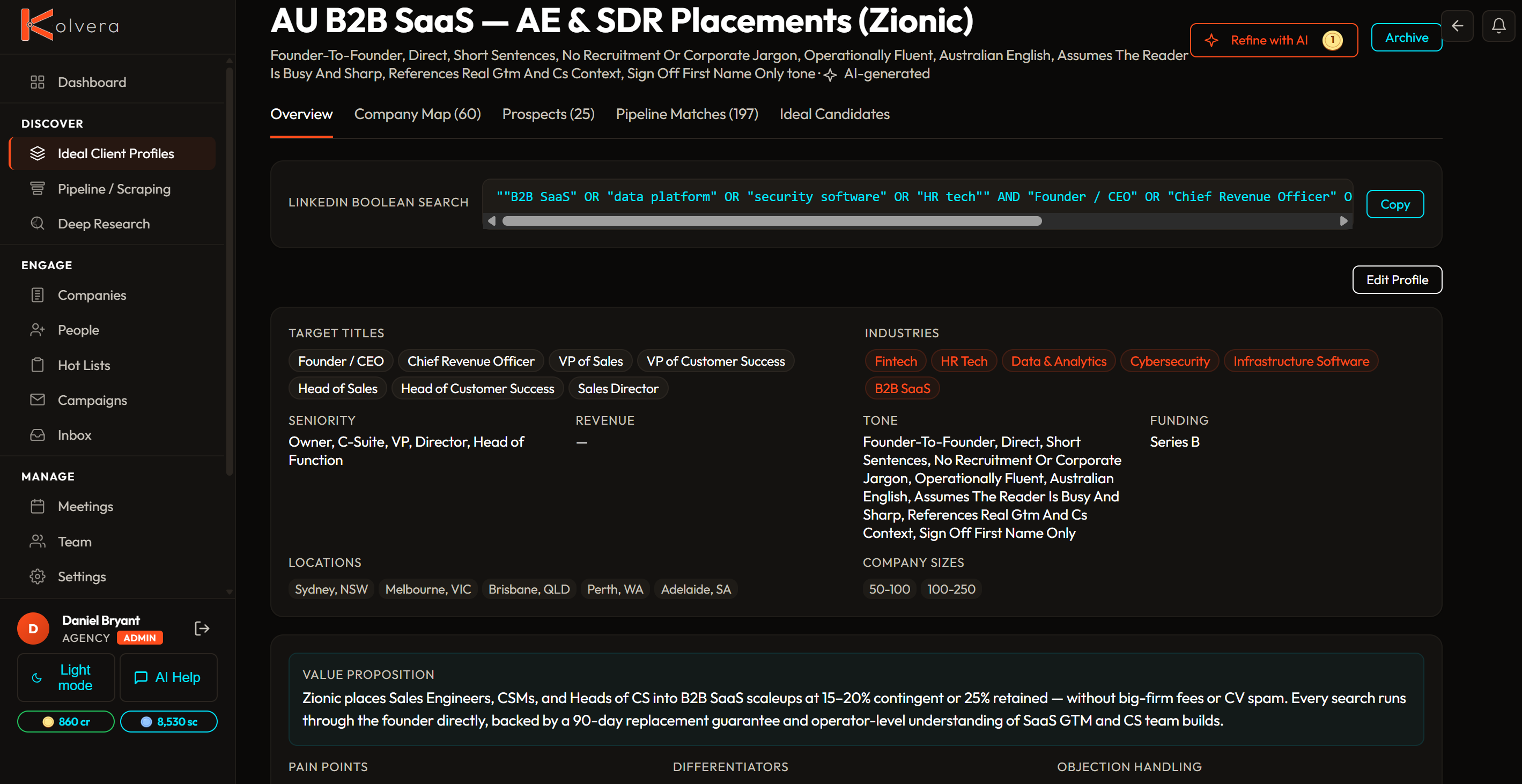
Draft (3 cr) — AI builds the full profile from your seed: Hiring Manager Titles, industries, locations, company sizes, pain points, value proposition, differentiators, objection handling, disqualifiers, hooks, and search keywords. Uses your business context from Settings to write accurate seller-framed content.
Confirm — click Find my companies (6 cr) to run Deep Research against the draft and populate the desk with real companies before it goes live.
Live — the desk is created with its companies mapped and ready to work.
Your very first desk is created free as part of first-signup onboarding (Market → Business → Desk → Research → Monitoring) — no wizard credit charge on that one.
Roles I Recruit — a free-text, editable field on the desk describing the vacancies you fill. It is derived from your target titles but you can edit it any time, and it tunes job board monitoring and lead matching to the roles you actually recruit for.
Hiring Manager Titles — the decision-maker titles you sell to at each company. Used to find prospects and to build the LinkedIn Boolean search.
Disqualifiers and hooks — AI-generated disqualifiers (reasons to reject a company) and hooks (conversation openers) are included in every profile. Both feed into Deep Research and Discovery matching for tighter targeting.
Consistency checks — generated profiles are automatically checked for contradictions — mismatched size ranges, location gaps, overlapping criteria — with warnings shown before saving.
From research — generate a desk directly from Deep Research results. AI analyses the researched companies and builds a generic profile. All found companies are automatically added to the desk's company map with contact matching.
From company — generate a desk from any company detail page using verified company data.
From a CV (Reverse Market) — generate a buyer-side desk from a candidate's CV to find the employers who would hire them (3 cr). CV-reverse desks flag placement targets separately from product prospects.
Contact auto-matching — when a company is mapped to a desk, existing contacts at that company are automatically linked as prospects on the desk.
The four tabs
Open a desk and it lands on Discovery — everything else is one click away. The tab bar carries badges so you always know where there's something to do: a count of new companies to triage on Discovery, and a total on Your list, Talent Pool and Prospects.
Discovery — new hiring activity at companies not yet on this desk. Every scraped role that matches your desk's keywords, roles, sector, size and location lands here first, newest on top. This is where leads arrive and where you decide what joins the desk.
Your list — every company you've kept, as a signal-first card feed (each card pairs a hiring signal with a decision-maker and a BD angle) or, in Table view, a sortable, filterable, bulk-actionable list. This is the desk's actual company map.
Talent Pool — candidates pooled directly against this desk for headhunting, no Reverse Market Profile required. See
Talent Pool for the full guide.
Prospects — the decision-makers you're selling to at every company on Your list, in one flat, sortable table.
Discovery and Your list used to be two views of one Companies tab; they're now separate tabs so a fresh lead and an already-worked company never sit in the same list.
How a lead reaches Discovery
A row appears on Discovery when your desk's job board monitoring picks up a new posting at a company you haven't mapped yet — see Lead Scraping & Monitoring for how scans are scheduled. Each row shows the company, role title, location, how long the ad's been live, and its source. Sort by newest, days live, or company; filter by role when the desk has more than one role in play.
A handful of borderline companies get a second look before they ever reach you: if the classifier can't confidently decide a company fits, it lands in a Needs a look band above the main queue with a reason chip (agency-posted, fits several desks, weak match evidence) — click This desk to file it in, or Hide from desk to drop it from view.
Working Discovery
Every row on Discovery gets one of three calls: Keep maps the company onto Your list, Pass tells this desk the role isn't a fit, and Not relevant (behind the row's kebab menu, and in the bulk bar) kills the posting everywhere. A Research option sits in the same kebab menu, priced per company (2 cr) so you always see the cost before you spend it.
These calls aren't just filing — Keep and Pass are how the desk learns your taste over time, and demoted leads are never thrown away, only tucked out of sight until you tell the desk otherwise. That mechanism, and exactly what each verb does and how far its effect reaches, is its own page: see How your desk learns and Keep, Pass, Confirm and Hide — which one to use.
Once a company is on Your list, the working verbs change: Confirm is the terminal decision that files it for good, and Hide from desk drops it from your view while it stays mapped and monitored underneath.
Desk health
Below the "who fits" summary line, two chips give you the state of the desk at a glance:
Market coverage — is the scan running and finding a healthy volume of roles? Green when a scheduled scan ran recently, amber when it's overdue.
Desk precision — how well Discovery matches your taste, read off your recent keep rate. Shows as "Learning" until you've made enough Keep/Pass calls for the number to mean anything.
Next to them, a meter row shows companies watched, new matches this week, how many need a look, and total prospects. The Coach ▾ menu flags companies matching sectors outside your stated targets and lets you add them to the desk's scope or mark them not yours, one click each.
Monitoring
The desk header shows monitoring status at a glance and gives you two ways to trigger a scan:
Status dot and source pills — a coloured dot shows monitoring on/off, next to a pill per source (LinkedIn, Indeed, SEEK) showing which are active.
Scan now ▾ — trigger an immediate scan from the header: All sources, or LinkedIn/Indeed/SEEK individually. Results land in Discovery when the scan finishes.
Job Board Monitoring slide-out — opens from the header's monitoring button. An on/off toggle at the top, the Roles monitored pills below it, then a collapsed Advanced — schedule, sources & automation section: Frequency (every 3 days, every 5 days, or weekly — auto-scraping is capped at every 3 days to protect your scrape budget), Notify on completion (off, in-app, email, or both), which Sources run on schedule, and an Auto-Prospect contacts option that links contacts at mapped companies as prospects automatically. Every control auto-saves as you change it — there's no Save button. On-demand scans run from the header's Scan now ▾ menu only.
Roles monitored — a pill list in the slide-out of the roles searched for, editable inline (click to edit, one per line) — the same field as Roles I Recruit. An Edit Config link opens the underlying Search Config for exclude keywords and SEEK classification tuning.
Settings ▾ — Edit desk (the profile fields) and Scrape History.
Monitoring also powers Hiring Signals — a card in your Action Inbox when a watched company posts a new role.
Company Matching
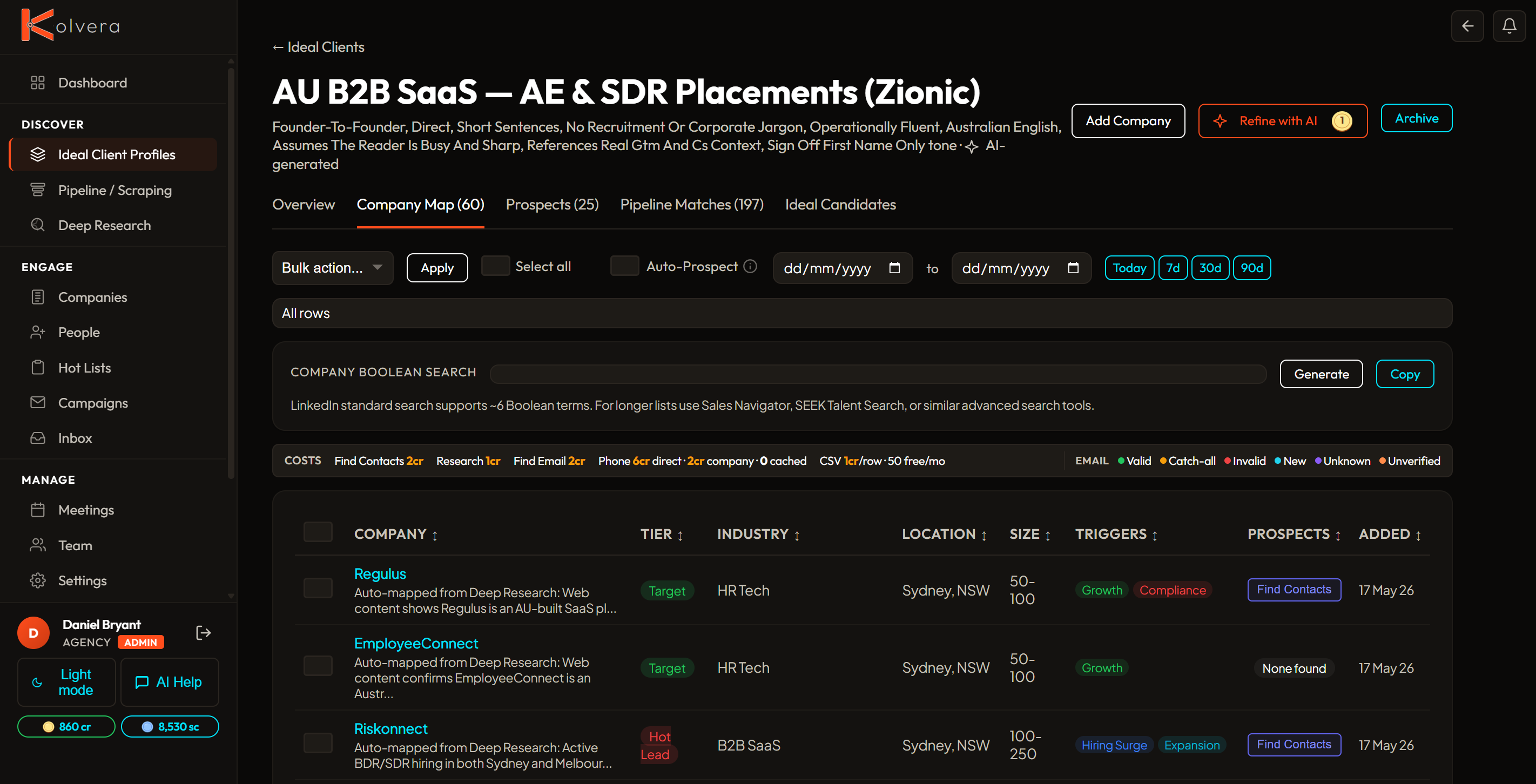
Auto-mapping — companies discovered via Deep Research or enrichment are automatically matched to relevant desks by industry and location.
Multi-desk support — a company can match multiple desks if it fits more than one profile.
Canonical industry matching — industry matching uses a canonical taxonomy with token-level overlap, replacing loose string comparisons for fewer false positives.
Employee size enforcement — numeric employee bounds from your desk are hard filters. Companies outside your stated range are excluded from research and Discovery matching.
Sending companies to a Hot List
Select companies on Your list and use the Add to Hot List bulk action to build a curated, campaign-ready shortlist. Tiering and prioritisation happen on the Hot List side, not the desk — see Hot Lists for what you can do with a list once it's built.
Prospects on this desk
Contacts you are selling to at mapped companies appear with a prospect role on the unified People page, linked back to this desk. Within the desk's Prospects tab:
Flat, scannable list — one row per prospect with a Company column, sortable and filterable, so every contact on the desk is visible without clicking to expand.
Inline enrichment — Find Email and Find Phone buttons appear in empty cells for quick enrichment directly from the desk view.
Email status pills — email verification status shown as coloured pills (valid, catch-all, unverified, invalid, new, unknown) across all pages.
Desk Detail
Inline editing — click any field on the desk detail page to edit it directly. No separate edit mode — textareas auto-size to content.
Fuzzy duplicate detection — creating a desk with a name similar to an existing one triggers a nudge to prevent accidental duplicates.
Desk Index
Card tiles — desks displayed as cards with company count, prospect count, and Active badge.
People filtering — filter the unified People page by desk to see the prospects tied to each one.
Boolean search — each desk auto-generates a LinkedIn-ready boolean search string from its Hiring Manager Titles.