Hot Lists
Curated shortlists of contacts and companies for targeted outreach — built manually, built from a Desk's matched companies, or populated by bulk enrichment.
Create Lists
Create a new Hot List from the Hot Lists index page. Give it a name, optional description, and optional colour tag. Lists are private to their creator by default in separate data-isolation mode, and visible to all team members in shared mode.
Build from a Desk
Use the Build Target Hot List button on any Desk's Companies tab to populate a Hot List from that Desk's matched companies. Companies are ranked and assigned a tier — Hot Lead, Target, or Nurture — using a weighting preset (balanced, recruitment, or SaaS sales), and the list is seeded with the strongest fits, their contacts, and company metadata pre-populated.
Member Metadata
Each member in a Hot List has a status field and a notes field, both editable inline in the member table. Status options: Not Started, Connected, LVM, Number Dead, Replied, Meeting, Converted. Status also updates automatically when a linked prospect replies or books a meeting — members already marked Converted are never overwritten. Use notes to record context specific to this list without modifying the global contact record.
Member Table
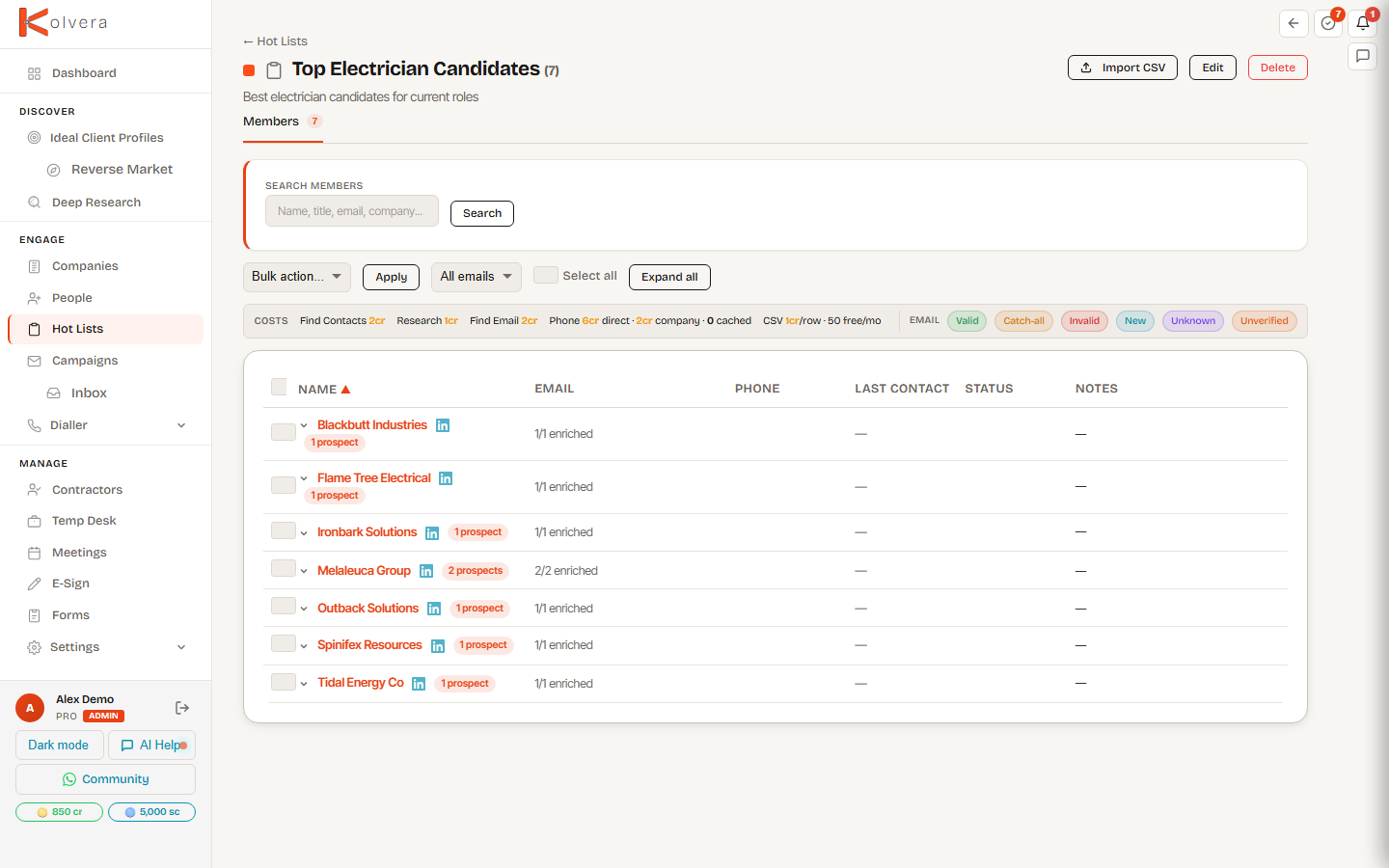
Members are shown in a single flat table — one row per person, with Name, Title, Company, Email, Phone, Last Touch, Status, and Notes columns. Sort by Name, Company, Last Touch, or Status, search across name, title, email, and company, and page through in blocks of 25, 50, 100, or 200. Companies added without contacts appear as their own row marked No contacts yet, ready for Find Contacts.
Cross-Populate
Add members from one Hot List to another without duplication. Select contacts in the member list and use the Add to List bulk action to copy them to any other list. Existing members are skipped automatically.
Campaign Enrolment
Enrolment runs from the campaign side, not the list side. Open a campaign and use Enrol from List to pull in the members of a chosen Hot List. Contacts already enrolled in that campaign are skipped, and the result confirms how many were enrolled.
Bulk Actions
Tick members in the table (or use Select all), choose an action, and press Apply. Credit-consuming actions confirm the cost before running, and progress streams into an inline log you can dismiss to chain another action on the same selection.
Add to Prospects, Add to Desk, and Add to Desk Talent Pool appear only when prospecting is enabled on your plan.
Inline Enrichment
Find Email and Find Phone buttons appear inline on empty cells in the member table. Click to enrich a single contact without leaving the Hot List view.
Dedup
When adding contacts to a Hot List, duplicates (same contact already in the list) are detected and skipped automatically. A count of skipped duplicates is shown in the confirmation toast.